
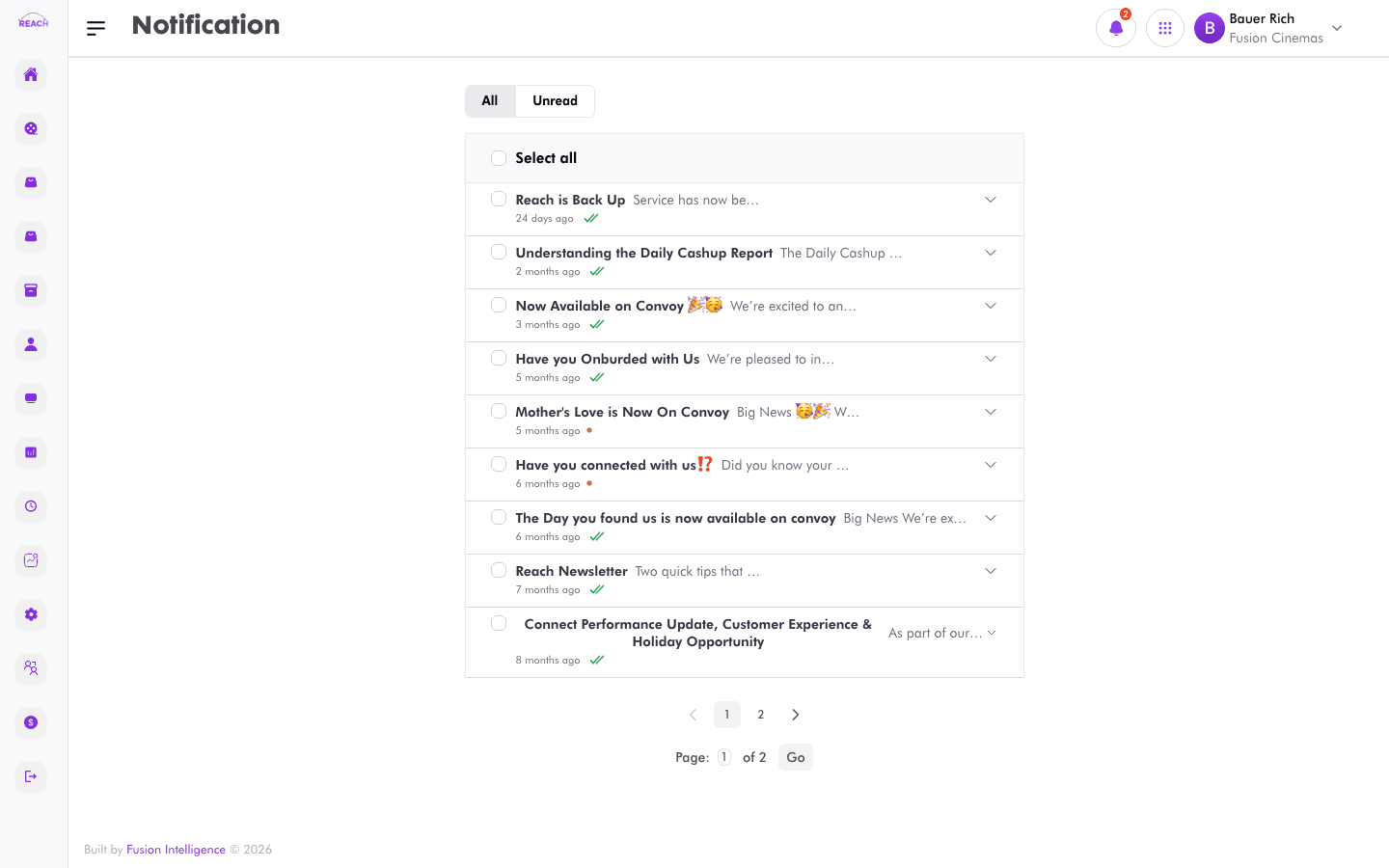
The Notifications screen lists messages and announcements sent to your account. Use it to catch up on anything you missed and mark items as read.
Before you start
- Notifications are delivered to your account automatically; there's nothing to set up.
- Featured announcements also pop up on the Dashboard when you sign in.
How to view notifications
- Open the Notification screen.
- Use the All / Unread toggle at the top to switch between every notification and only those you haven't read.
- Scroll the list; use pagination to move between pages (the list loads 10 per page by default).

How to mark notifications as read
- Select one or more messages.
- Confirm the read action. Selected messages are marked read; if none are selected you can mark an individual message read by opening it.
Tabs
| Tab | Shows |
|-----|-------|
| All | Every active notification, paginated. |
| Unread | Only notifications you haven't read yet. |