
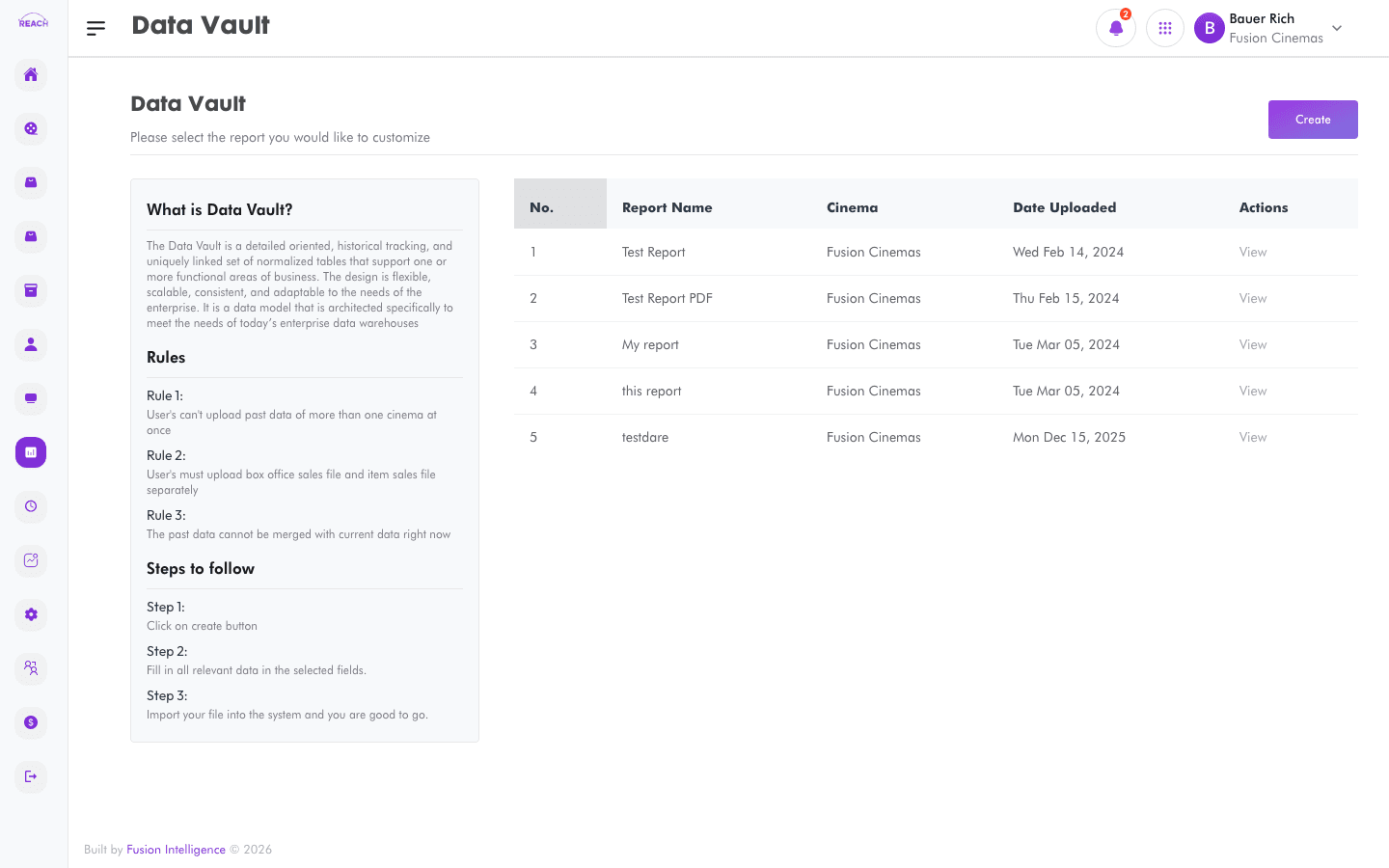
The Data Vault is where you keep custom reports and documents for your cinemas. Upload a file once and it's listed for viewing whenever you need it.
Before you start
- Have the report/document file ready to upload.
- The built-in Vault tutorial on the page walks you through the process.
How to view stored reports
- Open Data Vault from the sidebar.
- Review the table of uploaded reports and click View to open a file in a new tab.

Columns
| Column | Description |
|--------|-------------|
| Report Name | The report's name. |
| Cinema | The cinema it belongs to. |
| Date Uploaded | When it was uploaded. |
| Actions | View the file. |
How to upload a report
- Click Create to open "Upload Reports". Use Back to Data Vault to return.
- Enter the report name, select the cinema, and choose the file to upload.
- Submit. You'll see "Report uploaded successfully."
