
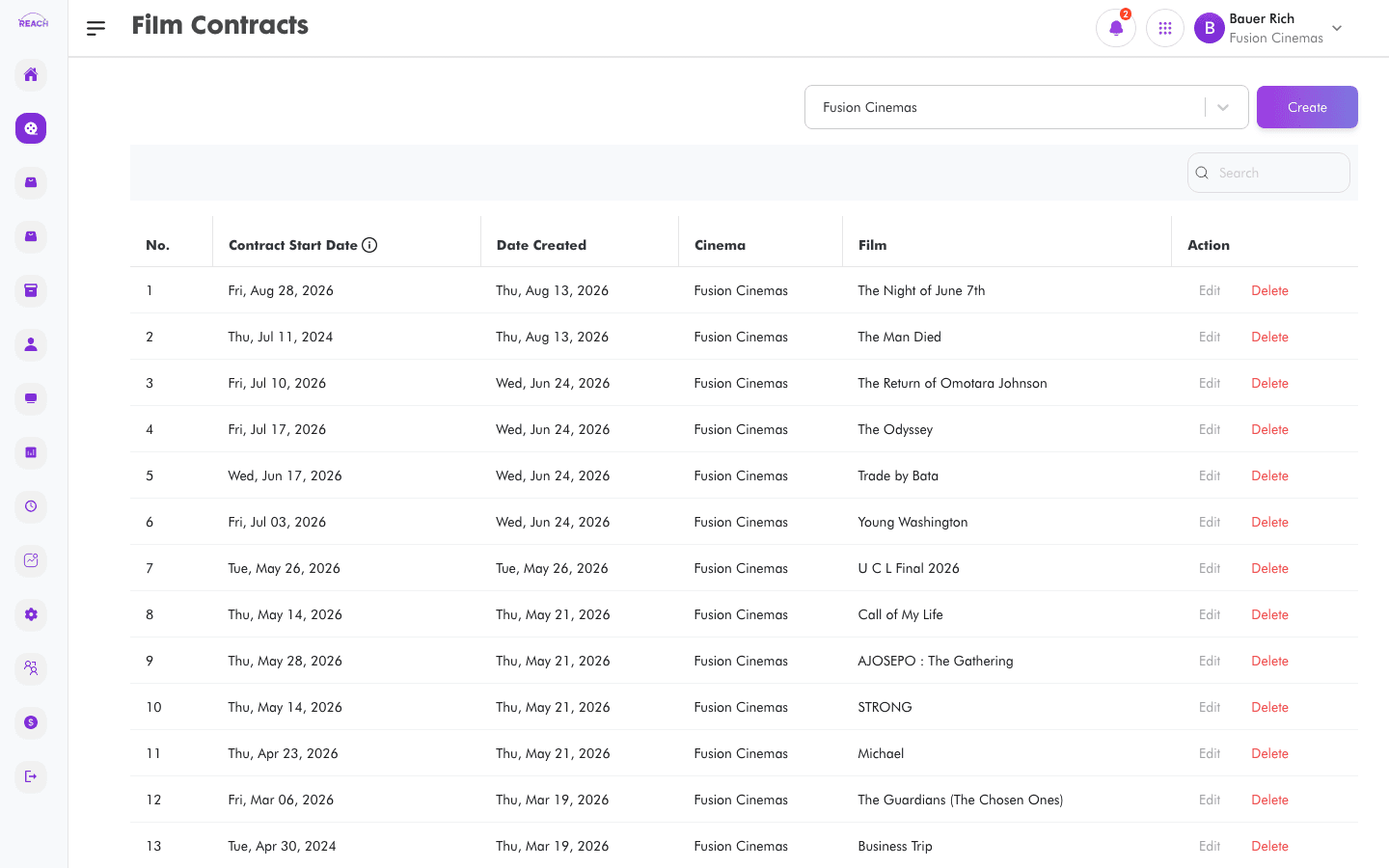
Film Contracts capture the commercial terms under which a film is shown — the film-hire agreement with the distributor, week by week. Reach Head Office uses these to calculate film hire in the Film Hire Report.
Before you start
- The film must exist in the catalogue — see All Films.
- Have your tax rates set up so the correct tax can be applied — see Default Tax Rates.
How to create a film contract
- Open Film → Film Contract, then click to create a new contract (opens "Create Film Contract"). Use Back to Film Contracts to return to the list.
- Complete the Contract Details:
- Contract Type — currently Weekly.
- Cinema — one or more cinemas the contract applies to (multi-select).
- Film — the film this contract covers.
- Tax — choose a tax rate, or Use Default Tax. The default tax rate is pre-selected.
- Start Date — the date the contract starts, usually the film's first day at the cinema.
- Fill in the weekly terms in the contract details table (percentage/terms per week number).
- Click Save. You'll see "Contract has been created. Check it out on the contracts table."

How to edit a contract
Open a contract from the list to load "Update Film Contract", change the fields, and Save.
Field reference
| Field | Description |
|-------|-------------|
| Contract Type | The billing basis (Weekly). |
| Cinema | Cinemas covered by the contract (multi-select). |
| Film | The film under contract. |
| Tax | Tax rate applied to the contract, or Use Default Tax. |
| Start Date | First day the contract/film applies. |