
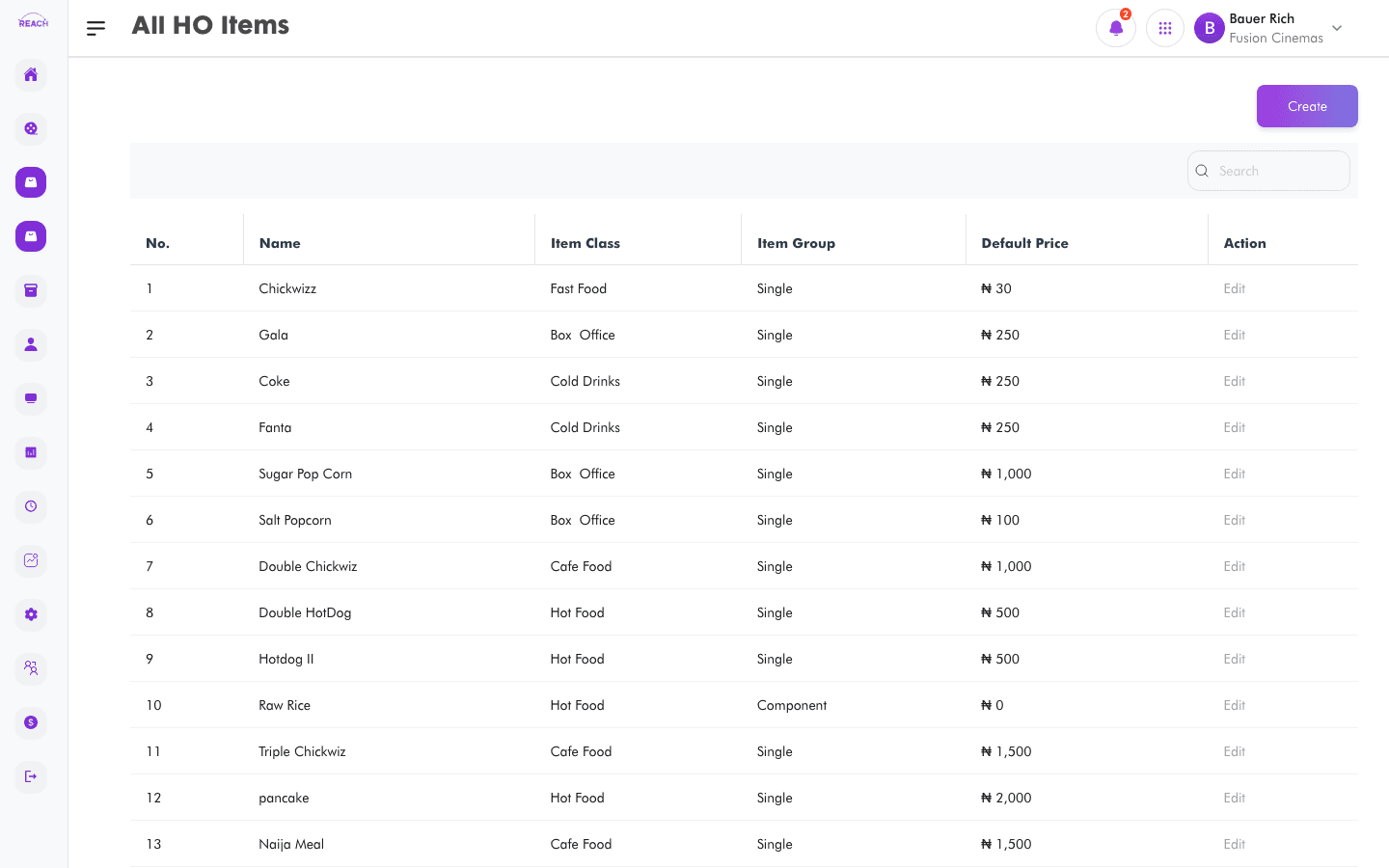
HO (Head Office) Items let you define an item at head-office level and push it to every cinema in the circuit in one go, setting a per-cinema price and active state. Use HO Items when the same product should exist across all your cinemas, rather than creating it cinema-by-cinema in Items.
Before you start
- HO Items use the same item details as cinema items — see Items for the field and item-group reference.
- Decide which cinemas should stock the item and at what price.
How to view HO items
- Open HO Items → All HO Items.
- Search and sort the table (sortable by Name).
HO item table columns
| Column | Description |
|--------|-------------|
| Name | Item name. |
| Item Class | The item's class/category. |
| Item Group | Single, Parent, Package, Recipe, Component, or Sundry. |
| Default Price | Selling price (currency-formatted). |
| Action | Edit opens the item. |

How to create an HO item
- Click the create button on the list (tooltip: "Create an item across the circuit in one go.").
- Fill in the Item Details — the same fields as a cinema item (Image, Name, Short Name, item class, item Group, Unit of Measure, cost/selling price, Service area, item source). See Items for the full field reference.
- In the item linking table, choose which cinemas receive the item and set each cinema's price and active state.
- Click Save.
How to edit an HO item
Click Edit on a row to open "Update Item", change the details or per-cinema settings, and Save.