
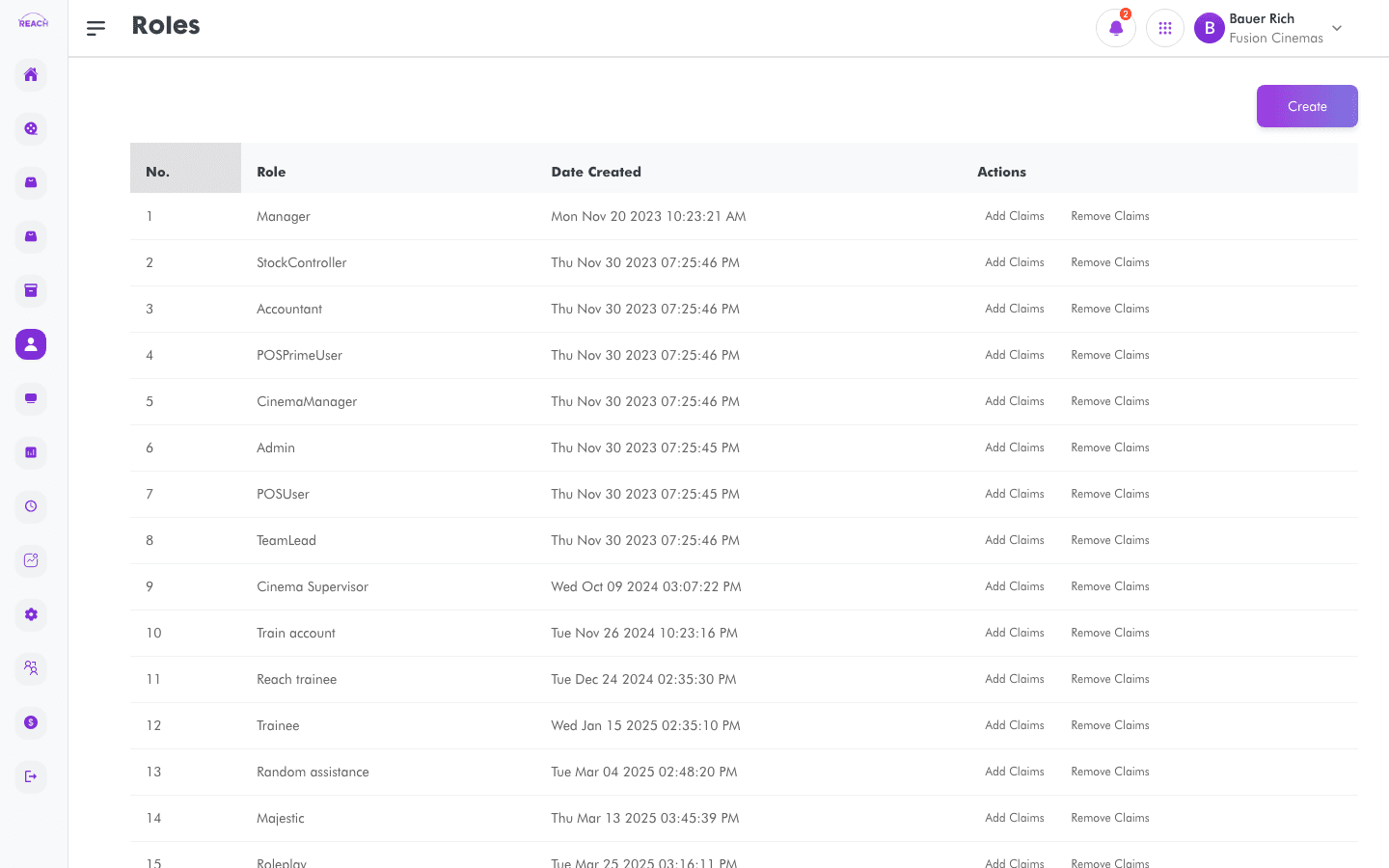
Roles bundle together the claims (permissions) that determine what a staff member can access in Reach Head Office and at the POS. This screen lists roles and lets you create them and manage their claims.
Before you start
- Plan which permissions each role needs before creating it.
- Once roles exist, apply them to individual staff in Assign Roles or when inviting staff in the Staff directory.
How to create a role
- Open Staff → Roles, then create a new role ("Create Role"). Use Back to Roles to return.
- In Role Details, enter the Role Name.
- Save. You're then prompted to add claims to the role — select the permissions this role should have.

Managing claims
- Add claims to a role to grant permissions.
- Remove claims from a role to revoke permissions.
Columns
| Column | Description |
|--------|-------------|
| Name | Role name. |
| Date Created | When the role was created. |
| Actions | Manage the role/claims. |