
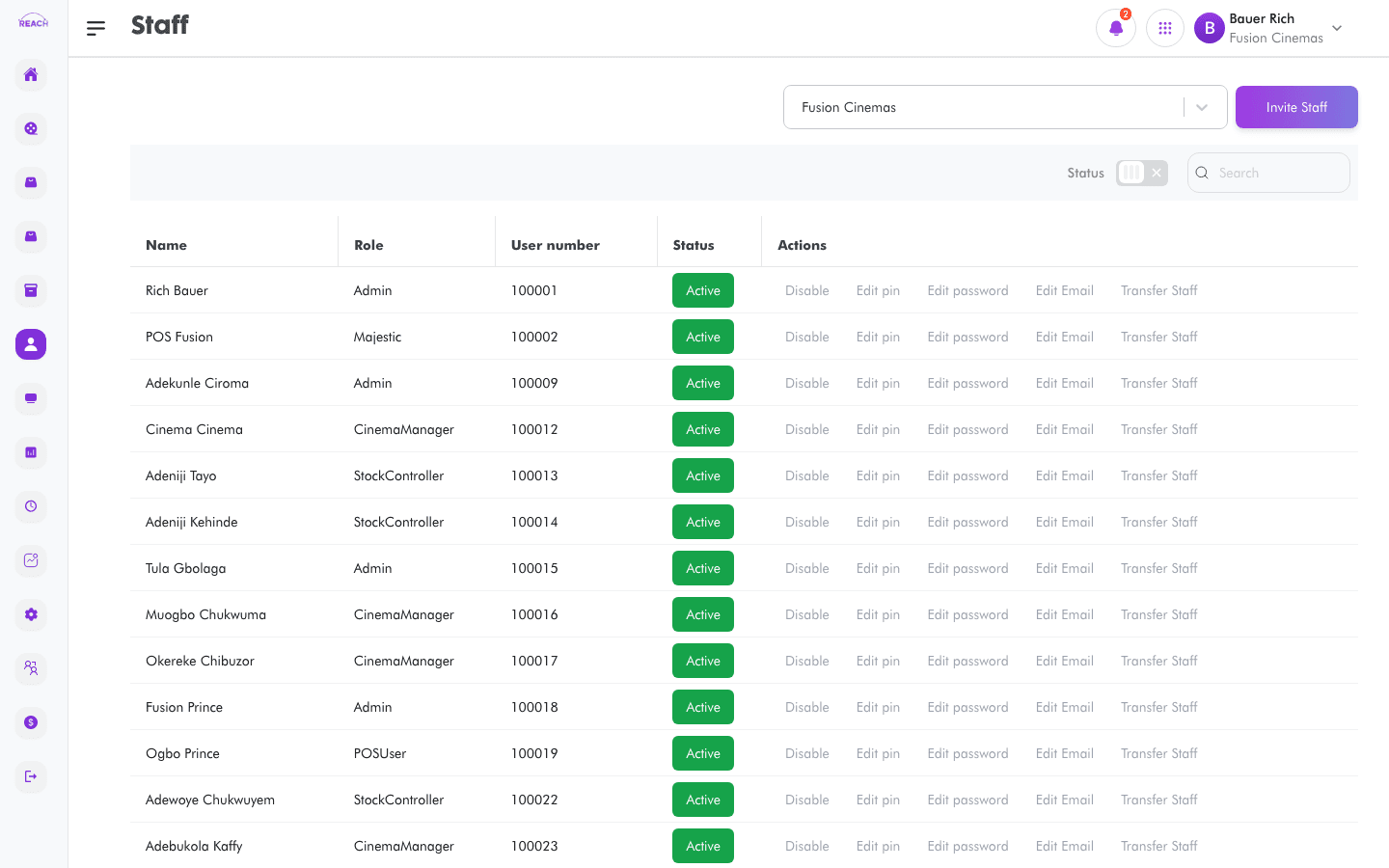
The Staff screen ("View Staff") lists the people who work in your cinemas. From here you invite new staff, edit their details, and create the PIN they use to sign in at the point of sale.
Before you start
- Create the Roles you want to assign before inviting staff.
- Assigning day-to-day permissions to existing staff is done in Assign Roles.
How to invite a staff member
- Open Staff → View Staff, then start a new invite ("Invite Staff").
- Complete the details:
- First Name, Last Name.
- Email Address, Phone Number.
- Cinema — the cinema the staff member belongs to.
- Role — their role.
- Select Language — their preferred language.
- Save to invite the staff member. New accounts sign in with a default password and set their own — see Change your default password.

How to edit a staff member
Open a staff row to load "Edit Staff", change the details, and save.
How to create a staff PIN
Use the Create Pin action for a staff member to set the PIN they'll use at the POS.
