
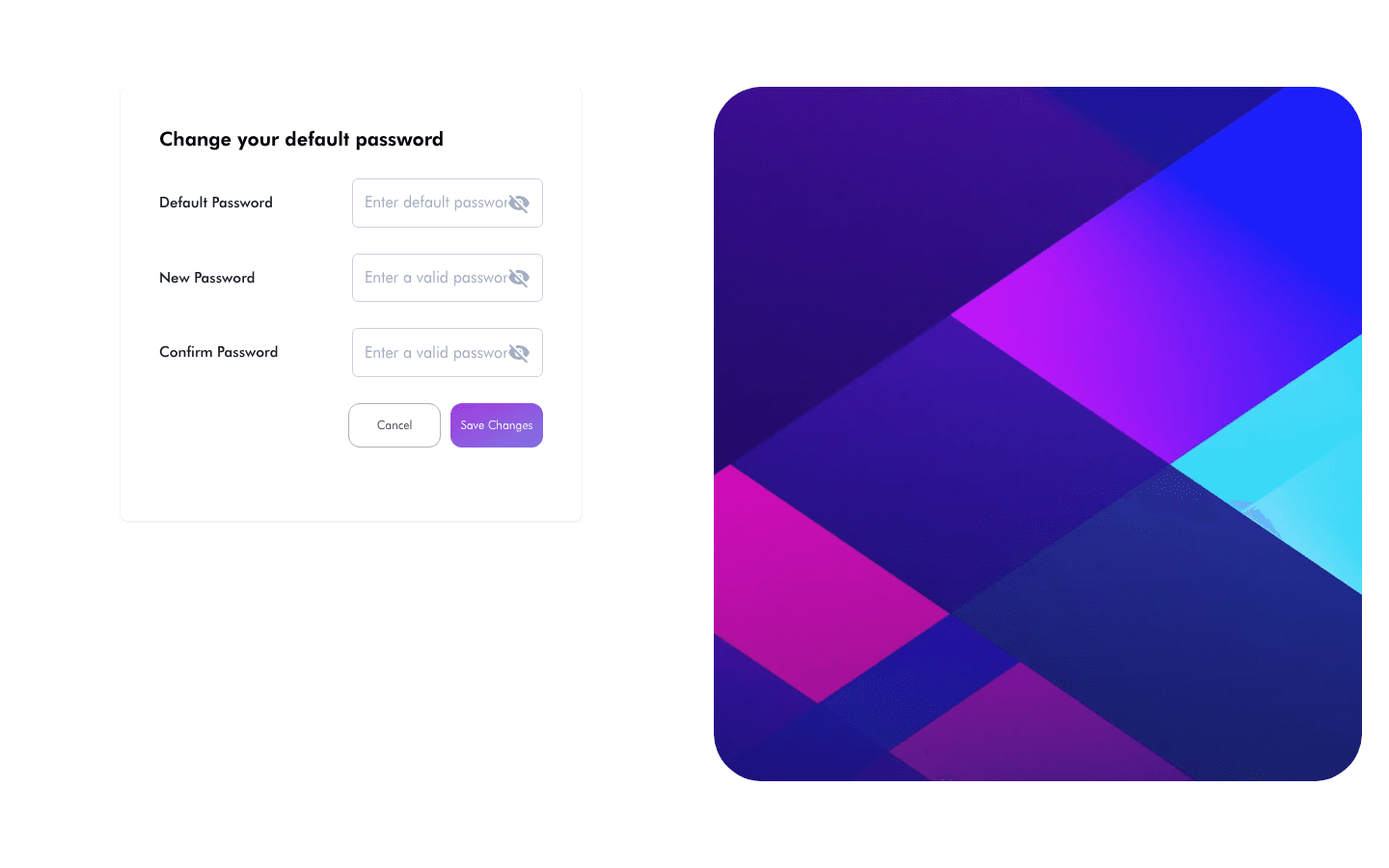
When your administrator creates your account, it comes with a temporary default password. The first time you sign in, Reach Head Office redirects you to the "Change your default password" screen so you can set your own before continuing.
Before you start
- You need the default password your administrator gave you.
- This screen appears automatically after your first successful sign-in — you don't navigate to it manually.
How to change your default password
- Sign in with your email/username and the default password. You're redirected to "Change your default password".
- In Default Password, enter the temporary password you were given.
- In New Password, enter the password you want.
- In Confirm Password, re-enter the new password.
- Click Save Changes. On success you'll see "Password change is successful. Click on OK to go to dashboard".
- Click OK to open the Dashboard.

Fields
| Field | Description |
|-------|-------------|
| Default Password | The temporary password from your administrator. |
| New Password | The new password you want to use. |
| Confirm Password | Must match New Password. |