
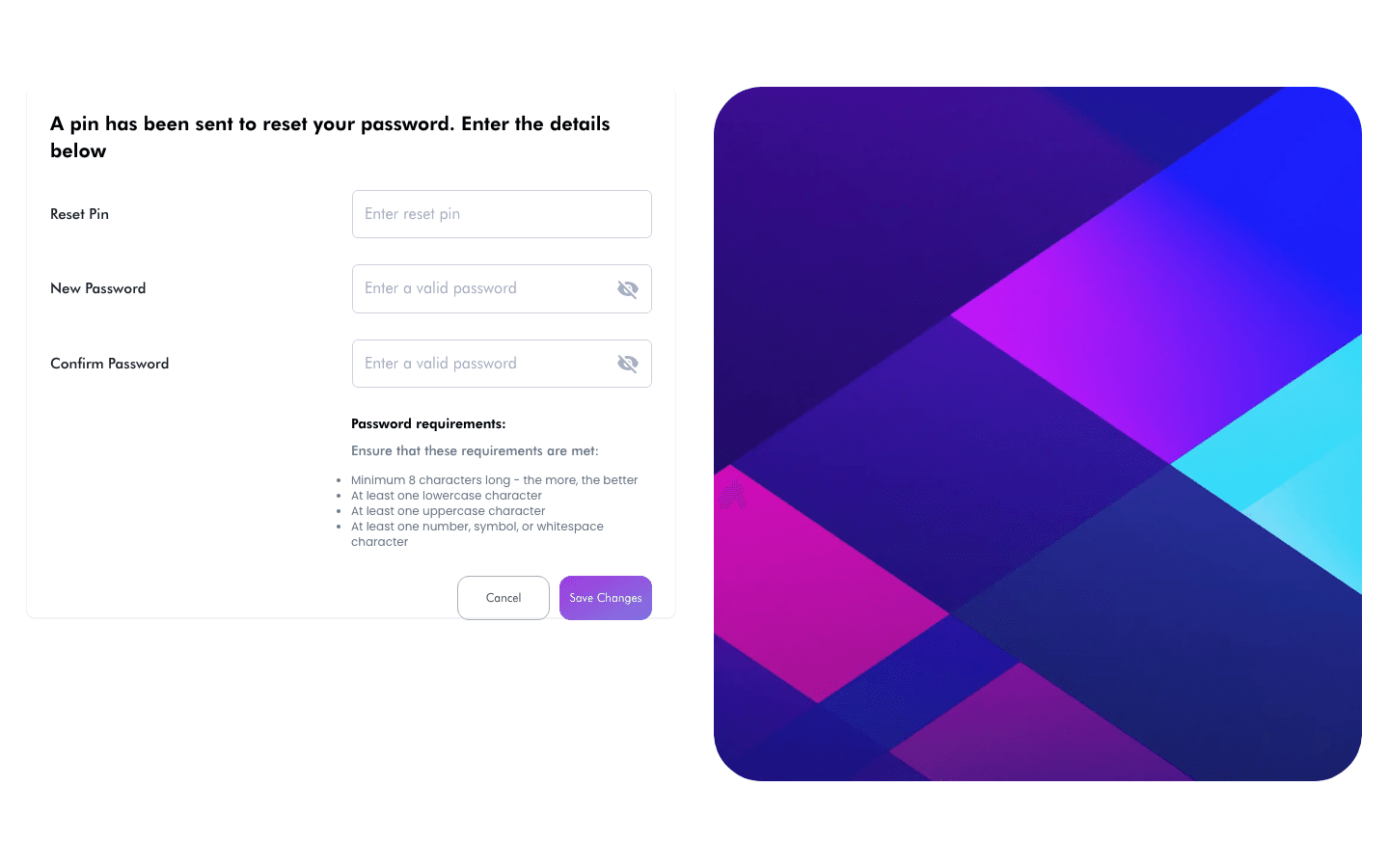
If you can't remember your password, Reach Head Office lets you reset it with a one-time PIN sent to the email on your account. This article covers requesting the PIN and completing the reset.
Before you start
- You must know the email address or username on your staff account.
- You need access to that email inbox to read the reset PIN.
- To change a password you already know while signed in, use My profile instead.
How to request a reset PIN
- On the Sign in screen, enter your Email/Username.
- Click Forgot Password?. Reach Head Office emails a reset PIN to that account and opens the reset dialog.
How to set a new password
- Go to the reset screen — it shows "A pin has been sent to reset your password. Enter the details below."
- In Reset Pin, enter the PIN from your email.
- In New Password, enter your new password.
- In Confirm Password, re-enter the same password.
- Click Save Changes. On success you'll see "Password reset is successful. Login with new password" — click to return to the Sign in screen.

Password requirements
Your new password must meet all of these:
- Minimum 8 characters long — the more, the better
- At least one lowercase character
- At least one uppercase character
- At least one number, symbol, or whitespace character