
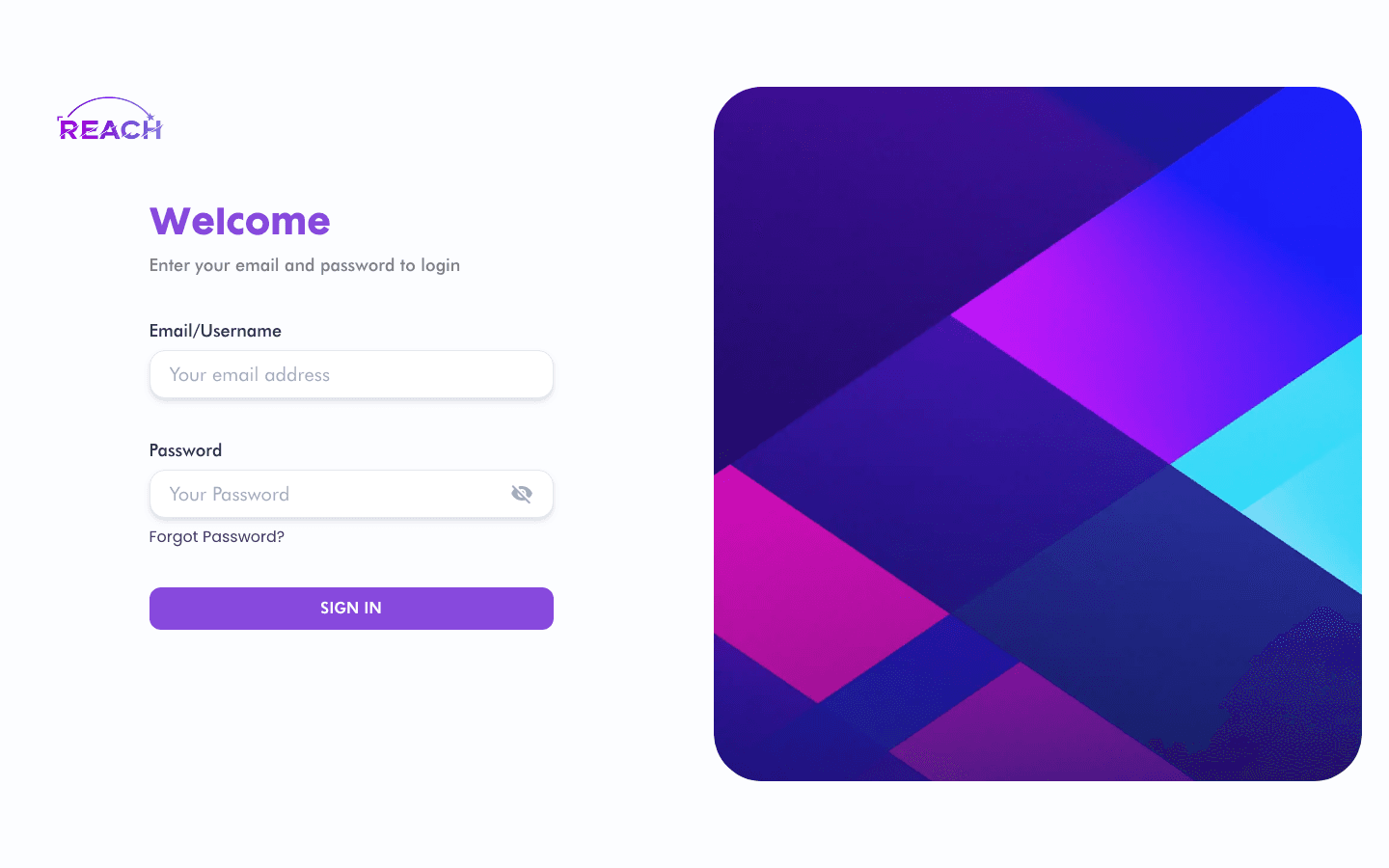
The sign-in screen is your entry point to Reach Head Office. Use it to authenticate with the account your administrator created for you. Reach Head Office is the head-office admin console for the Reach cinema platform, so access is limited to staff accounts provisioned for your circuit.
Before you start
- You need an active staff account. If you don't have credentials, ask your administrator to create one under Staff.
- If this is your first login, you'll be given a temporary (default) password and prompted to set your own — see Change your default password.
How to sign in
- Open Reach Head Office. You'll land on the Welcome screen with the prompt "Enter your email and password to login".
- In Email/Username, type your email address or username.
- In Password, type your password. Use the eye icon in the field to reveal it if needed.
- Click Sign In.
- On success you're taken to the Dashboard. If your account still has the default password, you're redirected to the change-password screen instead.

Fields
| Field | Description |
|-------|-------------|
| Email/Username | The email address or username on your staff record. |
| Password | Your account password. |
If you forgot your password
Click Forgot Password? beneath the password field. Your email/username must be filled in first — Reach Head Office sends a reset PIN to that account. Then continue on the Reset a forgotten password screen.
Common errors
- "Your email/username is required" — you clicked Forgot Password? without entering your email/username first.
- Incorrect credentials show the error message returned by the server as a toast in the top-right.