
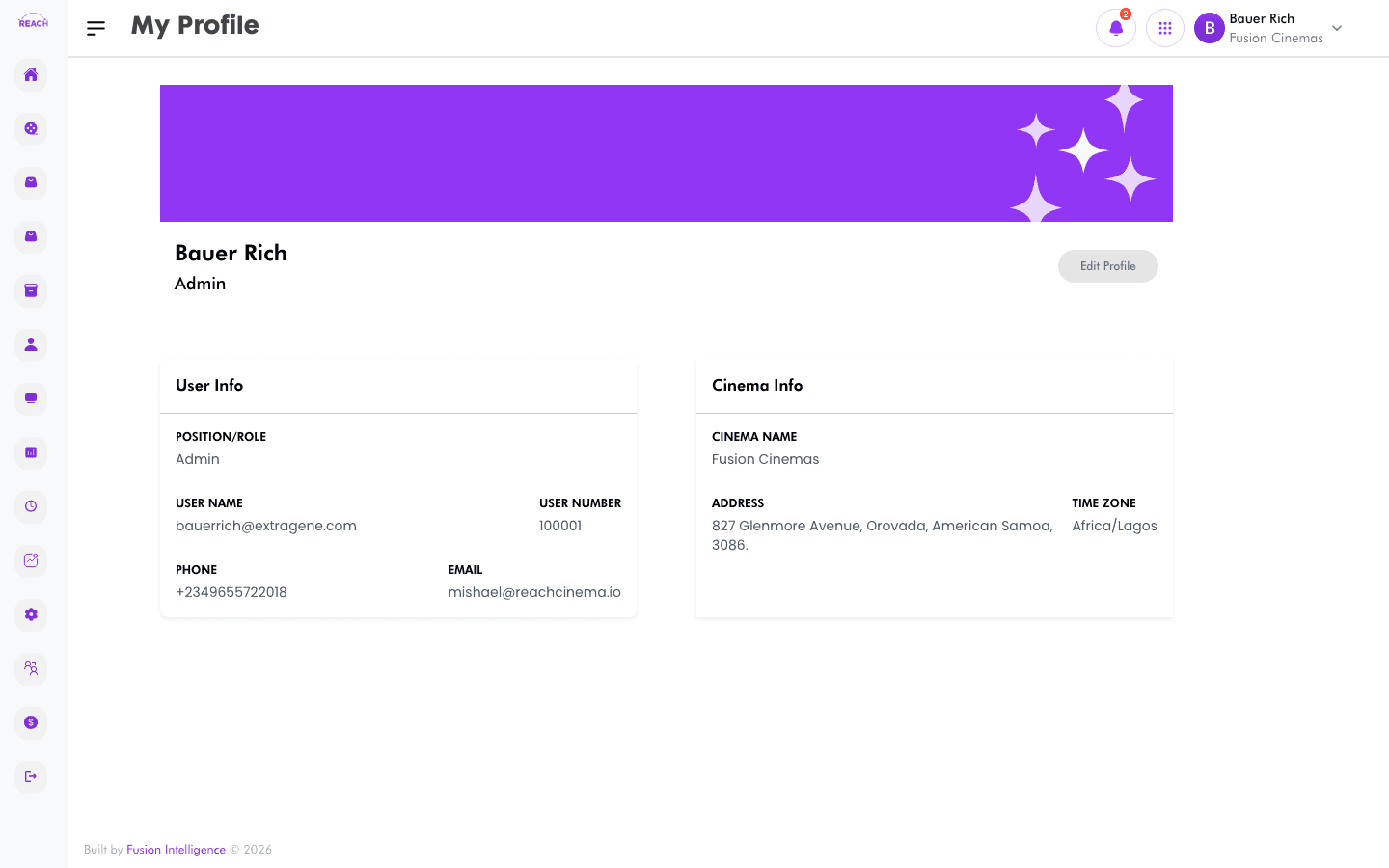
The My Profile screen shows your account details and the cinema you belong to. Use it to confirm your contact information and open your editable profile.
Before you start
- Every signed-in user has a profile. The information shown is drawn from your staff record — to change role assignments an administrator uses Assign roles.
What's on the screen
Your name and role appear at the top with an Edit Profile button.
User Info
| Label | Meaning |
|-------|---------|
| Position/Role | Your assigned role name. |
| User Name | Your login username. |
| User Number | Your staff/user number. |
| Phone | Your phone number. |
| Email | Your email address. |
Cinema Info
| Label | Meaning |
|-------|---------|
| Cinema Name | The cinema you're assigned to. |
| Address | The cinema's address. |
| Time Zone | The cinema's time zone. |

How to edit your profile
- Click Edit Profile at the top of the screen.
- Update your details on the profile edit form.
- Save your changes.
How to reset your password from your profile
Use the profile reset-password screen to set a new password while signed in. You can also reset a forgotten password from the sign-in screen — see Reset a forgotten password.